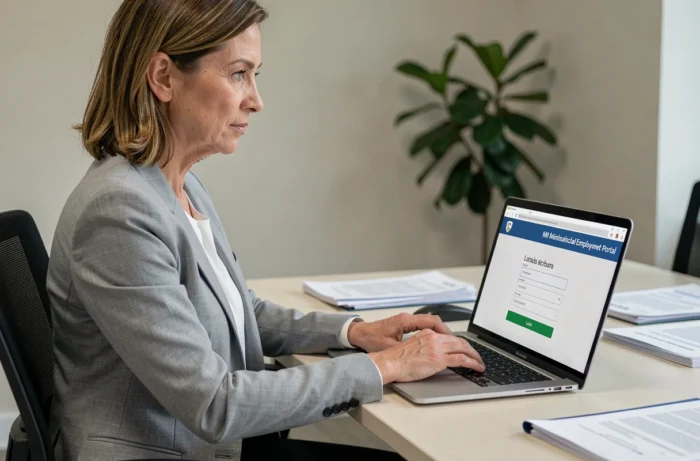
You are trying to access your work email from home or check a payslip while on the go, and the login page refuses to cooperate. This scenario regularly affects agents of the City of Paris who use the IntraParis nomade portal. The problem rarely stems from a global technical bug: it often comes down to a specific detail in the authentication chain.
Multifactor Authentication on IntraParis nomade: the point that guides overlook
Since 2024, logging into the portal nomades.apps.paris.fr no longer relies solely on a username/password pair. An additional layer has been added: multifactor authentication (MFA). After entering your credentials, a temporary code is sent via SMS or generated in an authentication app installed on your phone.
This mechanism protects your account, but it also causes the most frequent blockage. If you have changed your mobile number without updating your details, the MFA code is sent to your old number. Your password is correct, yet access remains impossible.
To rectify the situation, go to the City of Paris’s digital identity management platform. The link is accessible directly from the login page of nomades.apps.paris.fr, via the “Forgot Password” button, which redirects to vdp-gestionidentitenumerique.apps.paris.fr. You can update your phone number there. First and foremost, if you want to access my IntraParis nomade agent account smoothly, make sure that your registered mobile number is correct.
Nomade Authorization and IntraParis Account: Two Distinct Things
Having an active IntraParis identifier does not automatically mean you can log in from outside. This is a common misconception. Nomade access requires specific authorization, granted by your department or your local IT manager.
In practice, an agent who connects without difficulty from a workstation at the office may very well be blocked when attempting the same operation from home. The nomade portal is a secure remote access, separate from the internal network. Without this authorization, the login page displays a message indicating that access is subject to prior approval, in accordance with articles 226-15 and 323-1 to 323-7 of the penal code.
How to Obtain This Authorization
The process varies by department. In most cases, you need to submit a request to your local IT contact or go through an internal form on IntraParis (accessible from the City network). The processing time depends on the relevant department.
Have you already received this authorization but access no longer works? Check if your profile has been deactivated after a long period of inactivity. Some departments conduct regular reviews of active nomade accounts.
Resolving Connection Errors on the portal nomades.apps.paris.fr
Even with valid authorization and an up-to-date mobile number, technical obstacles may still exist. Here are the most common causes and their solutions:
- Expired password: the security policy of the City of Paris requires periodic renewal. If your password has expired, use the reset link on vdp-gestionidentitenumerique.apps.paris.fr to set a new one.
- Incompatible browser or overloaded cache: the portal works best on recent versions of Firefox, Chrome, or Edge. Clear your cache and cookies before trying again. Very old browsers may cause display errors on the authentication page.
- Active personal VPN: if you are using a private VPN on your computer or phone, disable it. The nomade portal may interpret the VPN connection as suspicious and block access.
- Temporary block after multiple failed attempts: after a certain number of password errors, the account is locked for a limited time. Wait before trying again, or contact support.
Accessing Work Email via Webmail
Email is one of the most used services in nomade access. The address webmail.apps.paris.fr allows you to check your work emails from any connected device. The login follows the same authentication process as the main portal.
If the email loads but displays a blank page, the problem often comes from an ad blocker or a browser extension interfering with the page loading. Temporarily disable these extensions to check.
Agent Account Security: Reflexes to Adopt in Remote Access
Connecting from a public Wi-Fi network (café, train station, hotel) exposes your session to interception risks. Prefer a mobile 4G/5G connection or a secure home network protected by a password.
Also, remember to log out systematically after each session. The nomade portal handles sensitive data: payslips, personal information, leave requests. Leaving a session open on a shared device is like leaving your HR file accessible to anyone who uses that device after you.
Browser and System Updates
An outdated operating system can prevent the proper functioning of the security protocol used by the portal. Keep your computer or phone up to date. The portal’s security certificates require a recent system to be recognized without error.
If your device displays a warning about an invalid certificate when trying to access nomades.apps.paris.fr, do not force the passage. First, check that the date and time on your device are correct, then update your browser.
Access to IntraParis nomade relies on three often-overlooked conditions: specific authorization (not just an IntraParis account), an up-to-date mobile number for MFA verification, and a compatible technical environment. By checking these three points before any connection attempt, most blockages disappear without needing to contact support.