
The MFR (Maisons Familiales Rurales) intranet is a centralized platform hosted on SharePoint, accessible via the address intranet.mfr.asso.fr. It brings together messaging, schedules, administrative documents, and collaborative spaces for the entire network: students, employees, trainers, parents, and internship supervisors. Understanding its architecture helps resolve most connection issues before they even arise.
Profiles and Access Rights on the MFR Intranet
Not all sessions are equal. The MFR network assigns differentiated access based on user profile: employee, occasional trainer, internship supervisor, administrator, or parent. Each profile grants specific rights to collaborative spaces, whether on SharePoint, Teams, or the school tracking tool W-@lter.
A parent can access their child’s progress and report cards but does not see the areas reserved for teaching teams. An internship supervisor can view agreements and reports related to the alternation but does not access internal training resources intended for employees.
There are also “guest” accounts for external partners. Their scope is limited to the files shared by the relevant MFR. This granularity prevents confidential documents from circulating outside the intended framework while allowing smooth collaboration with host companies.
To better understand the initial procedure, a detailed guide on the connection to the MFR intranet on Echo Web outlines the steps for first authentication and common errors to avoid.
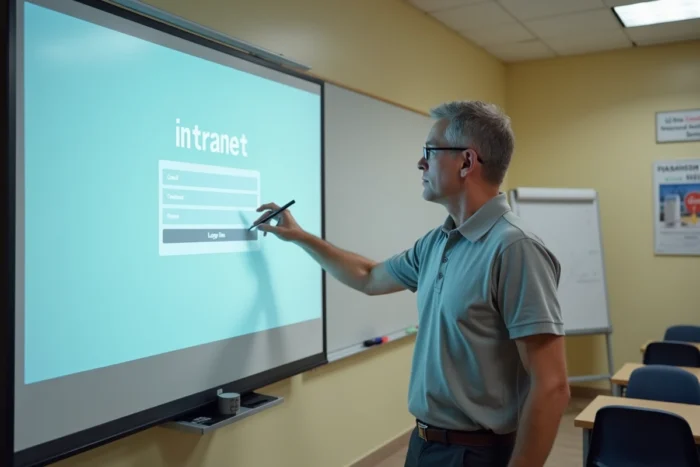
First Connection to the MFR Intranet: Welcome Path and Authentication
Credentials are provided to each user upon registration (for a student) or hiring (for an employee). The login page uses Microsoft authentication, which requires a username/password pair in a professional format, often based on the first and last name followed by the domain @mfr.asso.fr.
Several MFRs have integrated the first connection directly into the welcome path for new students and apprentices. The My MFR platform offers video tutorials and step-by-step guides that lead through each stage, from entering the username to setting up the personal password. This system significantly reduces connection incidents at the beginning of the school year.
Resolving an Authentication Block
The link “Can’t access your account?” on the login page triggers a reset procedure via the registered backup email address. If this address has never been provided, the only recourse is the MFR’s IT service or the local administrator.
- Check that the entered address follows the format [email protected] (a simple uppercase letter or an extra space can block access)
- Clear the browser cache and cookies related to the domain mfr.asso.fr before attempting to log in again
- Test from another browser or in private browsing mode to isolate an extension conflict
- Ensure that the account is not locked after several failed attempts, in which case a waiting period applies
Losing access is never permanent, but recovery takes longer without a backup email address. Providing this address during the first connection avoids the need to go through support.
Tracking Progress, Alternation, and International Mobility on the Intranet
Reducing the MFR intranet to a simple document download space would overlook its main function. The platform serves as a digital companion for tracking training paths, particularly within the framework of alternation that structures MFR pedagogy.
The file for each student centralizes skills assessments, internship reports, and evaluations from internship supervisors. Families access it with their own account, allowing them to follow progress without waiting for parent-trainer meetings.

Erasmus+ Mobility and Remote Coordination
The MFR network uses the intranet as an operational support for international mobility projects, including Erasmus+ internships abroad. Administrative files, internship agreements, and reports are stored in shared spaces accessible by the home MFR, the foreign partner, and the apprentice’s family.
This centralization simplifies coordination among geographically dispersed actors. An internship supervisor in Portugal and a trainer in Maine-et-Loire consult the same space, submit their feedback in the same folder, without scattered email exchanges.
Orientation Resources and Collaborative Tools for Families
Beyond the physical campus, the MFR intranet provides access to professional orientation resources organized by field. Students find job sheets, testimonials, and information on training available after their course.
The Teams collaborative spaces, linked to MFR accounts, allow trainers to share lessons, exercises, and revision materials. For families, My MFR acts as an entry portal directing them to content suited to their situation: enrollment procedures, health, workplace safety, management of the school file.
- My MFR offers personalized content by category: parent, internship supervisor, elected official, volunteer, employee
- International partnerships and their terms are documented directly on the platform
- A resource center gathers guides, tutorials, and useful contacts for each step of the journey
The intranet remains a living tool, continuously updated throughout the year by the teaching teams. Its value directly depends on the regularity with which each network actor deposits and consults information. Setting up notifications in the first week ensures nothing is missed, whether it’s a schedule change or an update to an internship agreement.